

CardCrop
Clean card photos, without the crop guesswork.
AVAILABLE ON THE APP STORE
Manual for control. Auto for speed.
Frame exactly what you want with Manual, or turn on Auto and let CardCrop detect, lock onto, and capture the card for you.

Manual for control
What you frame is what CardCrop keeps.
The visible border defines the crop. Frame the card, sleeve, holder, or slab exactly as you want it retained, then tap the shutter when you are ready.
Manual is part of CardCrop’s free core experience.

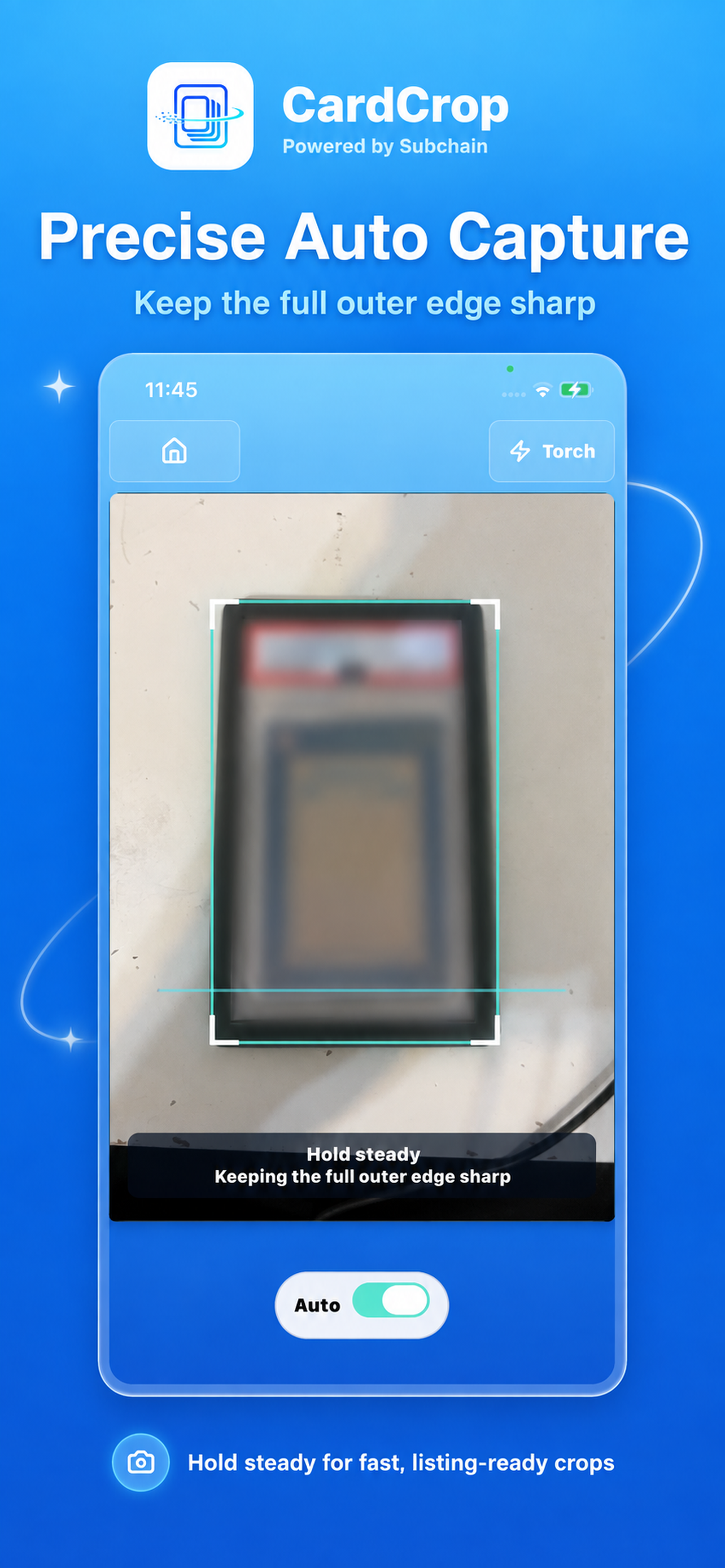
Auto for speed
Hold the card in view. CardCrop does the capture.
Turn Auto on and CardCrop visually detects and locks onto the card. Once it has a lock, it captures automatically—no manual shutter required.
Auto is also part of the free core experience.
Clean results
Review, save, and share finished card images.
CardCrop keeps recent exports close at hand so you can review the image, save it to Photos, or share it when it is ready to use.

Pro for customization
Customize the presentation, not the capture.
CardCrop Pro is an optional lifetime upgrade for tailoring the look of finished exports. Manual and Auto remain free.
- Any ColorChoose the background for a finished export.
- Custom LogoAdd your own logo to the presentation.
- Remove CardCrop logoExport without CardCrop branding.


How to use CardCrop
A simple capture-to-result workflow.
Choose the right capture mode, then move from card to finished image in four focused steps.
- 01Choose your capture mode
Use Manual when you want exact framing, or turn on Auto when you want CardCrop to detect and capture the card.
- 02Frame or lock
In Manual, the visible border is the crop. With Auto on, hold the card in view while CardCrop locks onto it.
- 03Capture the card
Tap the shutter in Manual. In Auto, CardCrop captures once the card is locked—no manual shutter required.
- 04Review, save, and share
Check the finished card image, then save or share it when it is ready to use.
CardCrop Mobile
Get CardCrop for iPhone.
CardCrop Desktop
A Mac-first workspace for turning raw trading card photos into consistent listing-ready images.
CardCrop DesktopmacOS